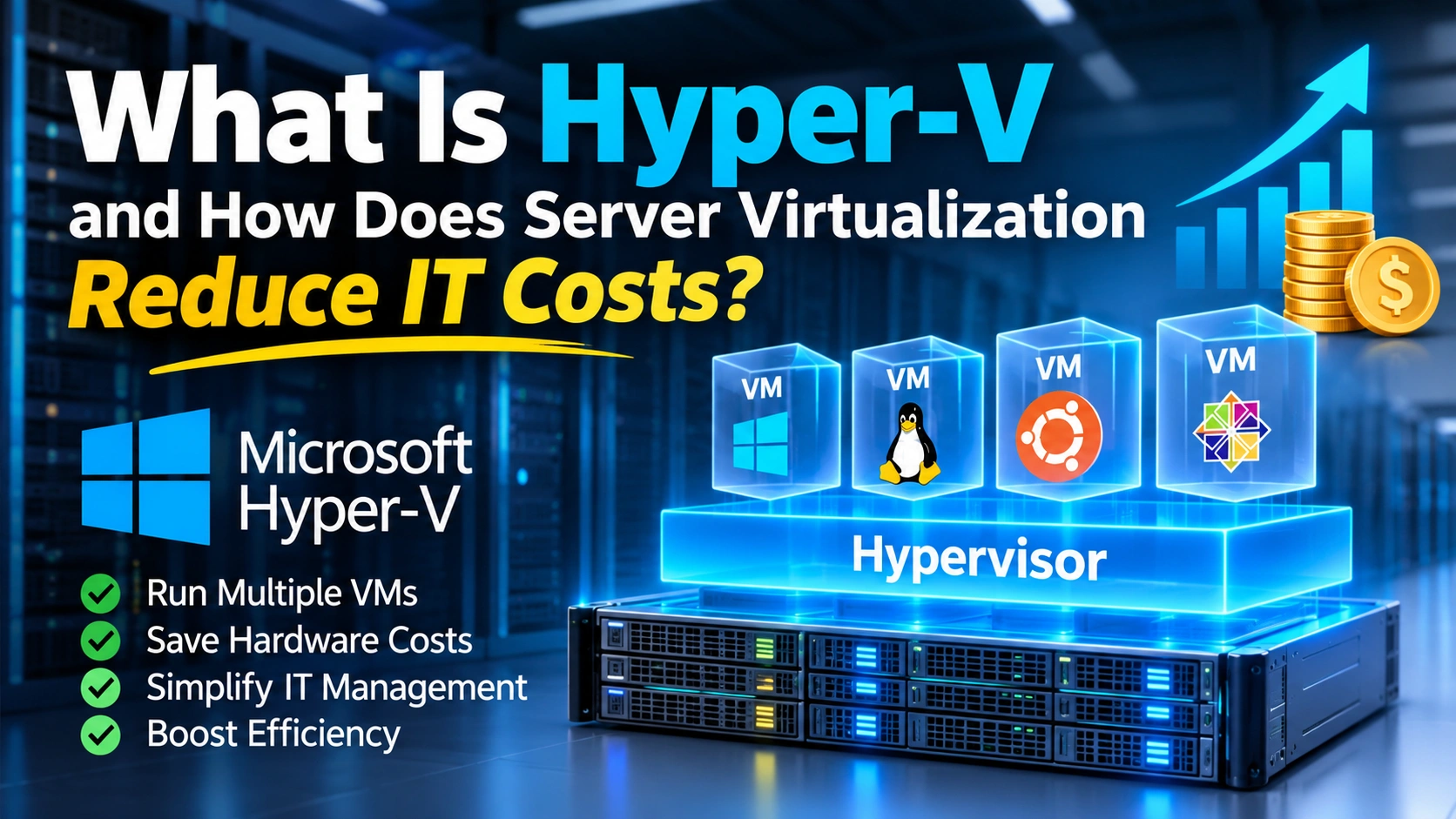
Microsoft Hyper-V is a virtualization platform that allows businesses to run multiple virtual machines on a single physical server. Instead of purchasing and maintaining separate hardware for every operating system or application, organizations can use Hyper-V to divide the resources of one powerful server into several independent virtual environments. This approach helps reduce hardware expenses, improve resource utilization, simplify IT management, and create a more flexible infrastructure.
Hyper-V is particularly useful for companies that need to operate multiple servers, test applications, run different operating systems, or build reliable IT environments without expanding their physical hardware. But how does this technology work, and when is it the right choice for a business?
What Is Server Virtualization?
Server virtualization is the process of creating multiple virtual servers on one physical machine. Each virtual server behaves like an independent computer, with its own operating system, applications, storage allocation, and configuration.
In a traditional infrastructure, a company might need separate physical servers for its database, website, internal applications, and file storage. This can increase hardware costs, electricity consumption, cooling requirements, and maintenance work.
Virtualization changes this model. A hypervisor manages the physical server’s resources and distributes them among virtual machines. As a result, several workloads can operate on the same hardware while remaining logically separated.
What Is Microsoft Hyper-V?
Microsoft Hyper-V is Microsoft’s native hypervisor technology. It enables administrators to create and manage virtual machines on compatible Windows Server systems and supported Windows editions.
Hyper-V provides the tools required to configure virtual processors, memory, virtual hard disks, network adapters, and other virtual hardware. Each virtual machine can run a supported guest operating system independently of the others.
For example, a business can use one physical server to host:
- A virtual machine running Windows Server for file services.
- Another virtual machine hosting a database.
- A Linux virtual machine for application development.
- A separate environment for testing software updates.
This structure makes it possible to manage several workloads without assigning a separate physical server to each one.
How Does Hyper-V Work?
Hyper-V uses a hypervisor to control access to the physical hardware. The hypervisor sits between the physical machine and the virtual machines, allocating resources such as CPU time, memory, storage, and network connectivity.
When an administrator creates a virtual machine, Hyper-V assigns it a set of virtual hardware resources. The guest operating system sees these resources as if they belonged to a separate physical computer.
The main components include:
Hypervisor
The hypervisor is the core virtualization layer. It manages the relationship between the physical hardware and virtual machines, helping ensure that workloads operate independently.
Virtual Machines
A virtual machine is an isolated software-based computer. It has its own operating system, applications, virtual disks, and assigned resources.
Virtual Processors and Memory
Hyper-V allows administrators to assign virtual processors and memory to each machine. These resources can be configured according to the workload’s requirements.
Virtual Hard Disks
Virtual hard disks store the data and operating system files of a virtual machine. Hyper-V supports formats such as VHD and VHDX.
Virtual Switches
Virtual switches connect virtual machines to each other, to the physical network, or to external networks. Administrators can configure different network arrangements depending on security and connectivity requirements.
What Are the Main Features of Hyper-V?
Hyper-V includes several features designed to support business virtualization, infrastructure management, and workload availability.
Virtual Machine Creation and Management
Administrators can create, configure, start, stop, and manage virtual machines through graphical tools or PowerShell commands. Each machine can have its own configuration and resource allocation.
Dynamic Memory
Dynamic Memory allows Hyper-V to adjust the amount of memory assigned to a virtual machine within configured limits. This can help improve memory utilization when multiple workloads share the same physical server.
Checkpoints
Checkpoints capture the state and configuration of a virtual machine at a particular point in time. They can be useful before software updates, configuration changes, or testing.
However, checkpoints should not be treated as a replacement for a proper backup system. They are primarily intended for short-term recovery and testing scenarios.
Live Migration
Live Migration allows administrators to move a running virtual machine from one Hyper-V host to another with minimal interruption, provided the environment is configured to support it.
This is useful when performing hardware maintenance or redistributing workloads across hosts.
Hyper-V Replica
Hyper-V Replica provides asynchronous replication of virtual machines to another Hyper-V host. It can support disaster recovery planning by maintaining a replicated copy of selected workloads.
Virtual Networking
Hyper-V virtual switches provide network connectivity between virtual machines and physical networks. Administrators can configure network isolation, connectivity, and traffic management according to their infrastructure design.
PowerShell Management
Hyper-V can be managed through PowerShell, making it easier to automate repetitive administrative tasks, configure virtual machines in bulk, and integrate virtualization management into existing IT workflows.
How Does Hyper-V Reduce IT Costs?
One of the main reasons businesses adopt Hyper-V is its ability to reduce the number of physical servers required to operate their IT infrastructure.
The financial benefits come from several areas.
Lower Hardware Costs
Instead of buying a separate physical server for every application, organizations can consolidate multiple workloads onto fewer machines.
This can reduce spending on server hardware, network equipment, racks, and replacement components.
Reduced Electricity Consumption
Physical servers consume electricity even when they are not using their full processing capacity. Consolidating workloads can reduce the number of machines that need to remain powered on.
This may lower electricity and cooling costs, particularly in organizations operating their own server rooms or data centers.
Better Hardware Utilization
In traditional environments, individual servers may use only a small portion of their available processing power and memory.
Virtualization allows several workloads to share the resources of a physical machine. This can improve infrastructure efficiency and reduce unused capacity.
Easier Infrastructure Expansion
When a business needs another server environment, administrators may be able to create a new virtual machine instead of purchasing and installing additional physical hardware.
The actual capacity depends on the available CPU, memory, storage, and network resources.
Lower Maintenance Overhead
Managing fewer physical servers can simplify hardware maintenance, monitoring, patching, and infrastructure planning.
Virtual machines can also be moved between compatible hosts, which can make some maintenance tasks easier to perform.
Hyper-V vs. VMware: What Is the Difference?
VMware and Hyper-V are two well-known virtualization technologies. Both allow organizations to run multiple virtual machines on physical hardware, but they differ in their product ecosystems, licensing models, management tools, and integration options.
| Feature | Microsoft Hyper-V | VMware vSphere |
|---|---|---|
| Main ecosystem | Microsoft | VMware |
| Virtualization | Hardware virtualization | Hardware virtualization |
| Management | Windows Admin Center, Hyper-V Manager, PowerShell and related tools | vCenter and related tools |
| Workload support | Supported Windows and Linux guest systems | Supported Windows and Linux guest systems |
| Automation | PowerShell and APIs | APIs and automation tools |
| Best fit | Microsoft-oriented infrastructures and suitable virtualization workloads | Organizations using VMware-based infrastructure and its ecosystem |
The best choice depends on the organization’s existing systems, technical requirements, licensing costs, team expertise, and long-term infrastructure strategy.
Hyper-V may be a practical option for businesses already using Microsoft technologies. VMware may be more suitable for organizations that depend on specific VMware features or have an established vSphere environment.
A decision should be based on the total cost of ownership and operational requirements rather than the virtualization platform alone.
Hyper-V vs. Physical Servers: Which Is Better?
Physical servers and virtual machines serve different purposes. A virtual machine still depends on physical hardware, so virtualization does not eliminate the need for reliable servers.
The main difference is how hardware resources are allocated and managed.
| Comparison | Physical Server | Hyper-V Virtual Machine |
|---|---|---|
| Hardware | Dedicated physical machine | Shares host hardware |
| Deployment | Requires physical installation | Can be created through software |
| Resource allocation | Fixed by installed hardware | Configurable within host capacity |
| Isolation | Physical separation | Logical isolation |
| Scalability | Often requires hardware upgrades | Can be expanded within available capacity |
| Maintenance | Hardware-level and operating system maintenance | Host and guest operating system maintenance |
Virtualization is generally more flexible for workloads that can safely share hardware. Dedicated physical servers may still be preferable for applications requiring specialized hardware, predictable low latency, or very high and consistent resource consumption.
What Are the System Requirements for Hyper-V?
Hyper-V requires compatible hardware and a supported operating system. The exact requirements depend on the Windows or Windows Server version and the features being used.
Common hardware requirements include:
- A 64-bit processor with hardware virtualization support.
- Hardware-assisted virtualization enabled in the system firmware.
- Data Execution Prevention support, such as Intel XD or AMD NX.
- Sufficient RAM for the host operating system and all virtual machines.
- Adequate storage capacity and performance.
- Compatible network adapters.
For production environments, hardware planning should account for peak workload demand, not just the minimum requirements for installing Hyper-V.
Administrators should also check processor compatibility, storage configuration, firmware settings, and operating system support before deploying the platform.
What Are the Most Common Uses of Hyper-V?
Hyper-V can support different types of IT workloads, from small development environments to enterprise server infrastructure.
Hosting Business Applications
Companies can run internal applications, accounting systems, customer relationship management software, and other business services inside virtual machines.
Separating applications into different virtual environments can make administration and troubleshooting easier.
Web and Database Hosting
Hyper-V can host virtual servers that run websites, web applications, and database management systems. Administrators can allocate resources according to each workload’s requirements.
For businesses operating several websites or applications, this approach can simplify server consolidation.
Software Development and Testing
Developers can create isolated environments to test applications across different operating systems and configurations.
For example, a development team can run separate Windows and Linux virtual machines on one workstation or server without needing additional physical computers.
Running Legacy Applications
Some organizations still depend on older applications that require specific operating systems or configurations. A virtual machine can provide a controlled environment for running compatible legacy software, provided its technical and licensing requirements are met.
Building Disaster Recovery Environments
Hyper-V Replica can maintain asynchronous copies of virtual machines on another compatible host. If the primary environment becomes unavailable, administrators can use the replicated machines as part of a recovery process.
How to Install Hyper-V on Windows 11
Hyper-V is available as an optional feature in Windows 11 Pro, Enterprise, and Education. It is not included as a supported Hyper-V feature in Windows 11 Home.
Before installation, check that hardware virtualization is enabled in your computer’s BIOS or UEFI settings.
The installation process generally involves these steps:
- Open the Windows Start menu.
- Search for Turn Windows features on or off.
- Open the Windows Features panel.
- Find and select Hyper-V.
- Expand the option and select its management tools and platform components.
- Click OK and allow Windows to install the required components.
- Restart the computer if requested.
- Search for Hyper-V Manager in the Start menu and open it.
After installation, you can create a virtual machine, configure its virtual hardware, and install a supported operating system.
For Windows Server, Hyper-V is installed as a server role. The available installation options and management capabilities depend on the Windows Server edition and version.
How to Create a Virtual Machine in Hyper-V
Creating a virtual machine is one of the main tasks administrators perform in Hyper-V. The process involves configuring virtual hardware and installing an operating system.
Step 1: Open Hyper-V Manager
Launch Hyper-V Manager and select the local computer or the remote Hyper-V host you want to manage.
Step 2: Start the New Virtual Machine Wizard
In the Actions panel, select New and then Virtual Machine. The wizard guides you through the configuration process.
Step 3: Choose a Name and Location
Enter a descriptive name for the virtual machine. You can also select a storage location for its configuration files and virtual disks.
Step 4: Select the Virtual Machine Generation
Hyper-V supports Generation 1 and Generation 2 virtual machines.
Generation 1 uses a traditional BIOS-based architecture, while Generation 2 uses UEFI and supports features such as Secure Boot. Generation 2 is generally the preferred option for modern operating systems, provided the guest operating system supports it.
Step 5: Allocate Memory and Processors
Specify the startup memory and configure the virtual processor count. The appropriate values depend on the operating system and applications you plan to run.
Avoid assigning more resources than the physical host can reliably provide.
Step 6: Configure Networking
Choose a virtual switch to connect the virtual machine to the required network. If no suitable switch exists, you may need to create one using Hyper-V’s Virtual Switch Manager.
Step 7: Create a Virtual Hard Disk
Create a virtual hard disk and specify its location and capacity. Hyper-V supports dynamically expanding and fixed-size virtual disks.
A dynamically expanding disk grows as data is written to it, while a fixed-size disk reserves its configured capacity in advance.
Step 8: Install the Operating System
Attach an ISO installation file or use another supported installation method. Start the virtual machine and complete the operating system installation.
Once the installation finishes, configure the guest operating system, security settings, network access, and required applications.
Is Hyper-V Secure?
Hyper-V provides isolation between virtual machines and includes security features designed to protect virtualized workloads. However, virtualization alone does not guarantee a secure infrastructure.
Security depends on how the host, virtual machines, storage, network, and administrative access are configured.
Important security practices include:
- Keep the Hyper-V host and guest operating systems updated.
- Restrict administrative access to authorized personnel.
- Use strong authentication and appropriate access controls.
- Configure network segmentation where necessary.
- Enable Secure Boot on supported Generation 2 virtual machines.
- Protect virtual machine files and backups.
- Monitor host activity and investigate unusual behavior.
- Use shielded virtual machines where supported and appropriate for sensitive workloads.
Administrators should also avoid treating virtual machine isolation as a substitute for firewalls, endpoint protection, access management, and regular security assessments.
What Are the Disadvantages of Hyper-V?
Although Hyper-V offers several benefits, it also introduces technical and operational challenges that organizations should consider before deployment.
Dependence on Physical Hardware
Virtual machines share the resources of their host. If the physical server fails, multiple virtual machines may become unavailable at the same time.
High-availability configurations and disaster recovery plans can reduce this risk, but they require additional planning and infrastructure.
Resource Competition
If too many virtual machines run on one host, they may compete for CPU, memory, storage, and network capacity.
Poor resource allocation can lead to slow applications, unstable performance, and unexpected downtime.
Management Complexity
Large virtualization environments require careful monitoring, capacity planning, network configuration, storage management, and security administration.
Organizations may need experienced system administrators to maintain reliable operations.
Licensing Considerations
Although Hyper-V is included with supported Windows products, the operating systems and applications running inside virtual machines may require separate licenses.
Windows Server virtualization rights depend on the edition and licensing model. Businesses should review Microsoft’s current licensing terms before estimating the total cost.
Backup and Recovery Requirements
Virtual machines still need regular backups. Checkpoints are not a complete backup solution, and keeping all virtual machines on one physical host does not protect against hardware failure or site-wide incidents.
A reliable backup strategy should include separate storage, recovery testing, and protection against ransomware.
Hyper-V or Cloud Computing: Which Should Businesses Choose?
Hyper-V and cloud computing are not necessarily competing technologies. They address different infrastructure requirements and can also work together.
Hyper-V is commonly used to create virtual environments on physical servers controlled by an organization. Cloud computing provides access to computing resources through a cloud service provider, often with flexible capacity and usage-based pricing.
| Factor | Hyper-V On-Premises | Cloud Computing |
|---|---|---|
| Infrastructure ownership | Organization manages physical hosts | Provider manages underlying infrastructure |
| Initial investment | Requires compatible hardware | Can start without purchasing physical servers |
| Scalability | Limited by available hardware | Often offers flexible resource expansion |
| Management | Requires internal administration | Shared between provider and customer |
| Data location | Can remain in company facilities | Depends on cloud deployment and configuration |
| Cost model | Hardware, licensing, maintenance, and energy | Subscription or usage-based costs |
A company with existing server hardware, internal IT expertise, and specific data-location requirements may benefit from on-premises Hyper-V.
A business that needs rapid expansion, globally accessible services, or reduced hardware management may prefer cloud infrastructure.
Some organizations use a hybrid model, keeping selected workloads on-premises while running other services in the cloud.
Best Practices for Managing a Hyper-V Environment
A successful virtualization project requires more than installing Hyper-V and creating virtual machines. Administrators should establish consistent operational practices from the beginning.
Monitor Resource Consumption
Track CPU utilization, memory pressure, storage performance, and network traffic. Monitoring helps identify overloaded hosts before they affect business applications.
Plan Storage Capacity
Virtual machine performance depends heavily on storage speed and reliability. Choose storage based on workload requirements and consider future growth when calculating capacity.
Maintain Regular Backups
Back up virtual machines and critical application data on a defined schedule. Store backup copies separately from the production environment and test restoration procedures regularly.
Separate Critical Workloads
Avoid placing every important application on a single host without considering failure scenarios. Distribute workloads across hosts where the business requires greater availability.
Document Infrastructure Configuration
Maintain records of virtual machines, assigned resources, network settings, operating system versions, licenses, and recovery procedures. Good documentation makes troubleshooting and future upgrades easier.
Automate Repetitive Tasks
Use PowerShell to automate virtual machine creation, configuration, monitoring, and routine administration. Automation can reduce manual errors and make infrastructure management more consistent.
Is Hyper-V a Good Choice for Small and Medium-Sized Businesses?
Hyper-V can be a suitable virtualization platform for small and medium-sized businesses that want to consolidate servers, run several operating systems, and manage their IT infrastructure more efficiently.
For example, a company with separate physical servers for file sharing, internal applications, and database services may be able to consolidate suitable workloads onto fewer physical machines.
However, the decision should consider more than the number of servers. Businesses need to evaluate application compatibility, hardware capacity, licensing, backup requirements, security, and the cost of maintaining the environment.
For smaller organizations without dedicated IT staff, a simpler hosted or cloud-based solution may sometimes be easier to operate.
Frequently Asked Questions About Hyper-V
Is Hyper-V free?
Hyper-V is included with supported Windows and Windows Server products, so there is no separate hypervisor license in the usual sense. However, Windows Server editions, guest operating systems, and applications may have their own licensing requirements.
Can Hyper-V run Linux?
Yes. Hyper-V supports many Linux distributions as guest operating systems. Compatibility depends on the distribution, version, and available integration features.
Does Hyper-V slow down a computer?
Hyper-V uses physical hardware resources to run virtual machines. If the host has sufficient CPU, memory, and storage capacity, performance can be very good. Running too many virtual machines or assigning excessive resources can reduce performance.
Can I run multiple virtual machines at the same time?
Yes. Hyper-V allows multiple virtual machines to run simultaneously on one physical host. The practical number depends on available hardware resources and the requirements of each workload.
What is the difference between Hyper-V and a virtual machine?
Hyper-V is the virtualization platform that creates and manages virtual machines. A virtual machine is the independent software-based computer that runs an operating system and applications on that platform.
Does Hyper-V support Windows 11?
Yes. Hyper-V is available as an optional feature in Windows 11 Pro, Enterprise, and Education. Windows 11 Home does not include the supported Hyper-V feature.
What is the difference between Hyper-V and VMware?
Both platforms provide hardware virtualization and allow multiple virtual machines to run on physical servers. Their management tools, licensing, integrations, and enterprise features differ. The best option depends on the organization’s existing infrastructure and technical requirements.
Are Hyper-V checkpoints the same as backups?
No. Checkpoints capture the state of a virtual machine at a particular time and are useful for testing or short-term rollback. They do not replace independent backups that can protect against hardware failure, data corruption, ransomware, or accidental deletion.
Can Hyper-V be used for disaster recovery?
Yes. Hyper-V Replica can asynchronously replicate virtual machines to another Hyper-V host. Organizations can use this capability as part of a disaster recovery strategy, alongside independent backups and tested recovery procedures.